KolmoPDF User Manual
1. PDF Parsing
PDF Parsing intelligently converts PDF files into editable Markdown, with table handling, formula delimiter settings, image storage options, and optional multi-language translation.
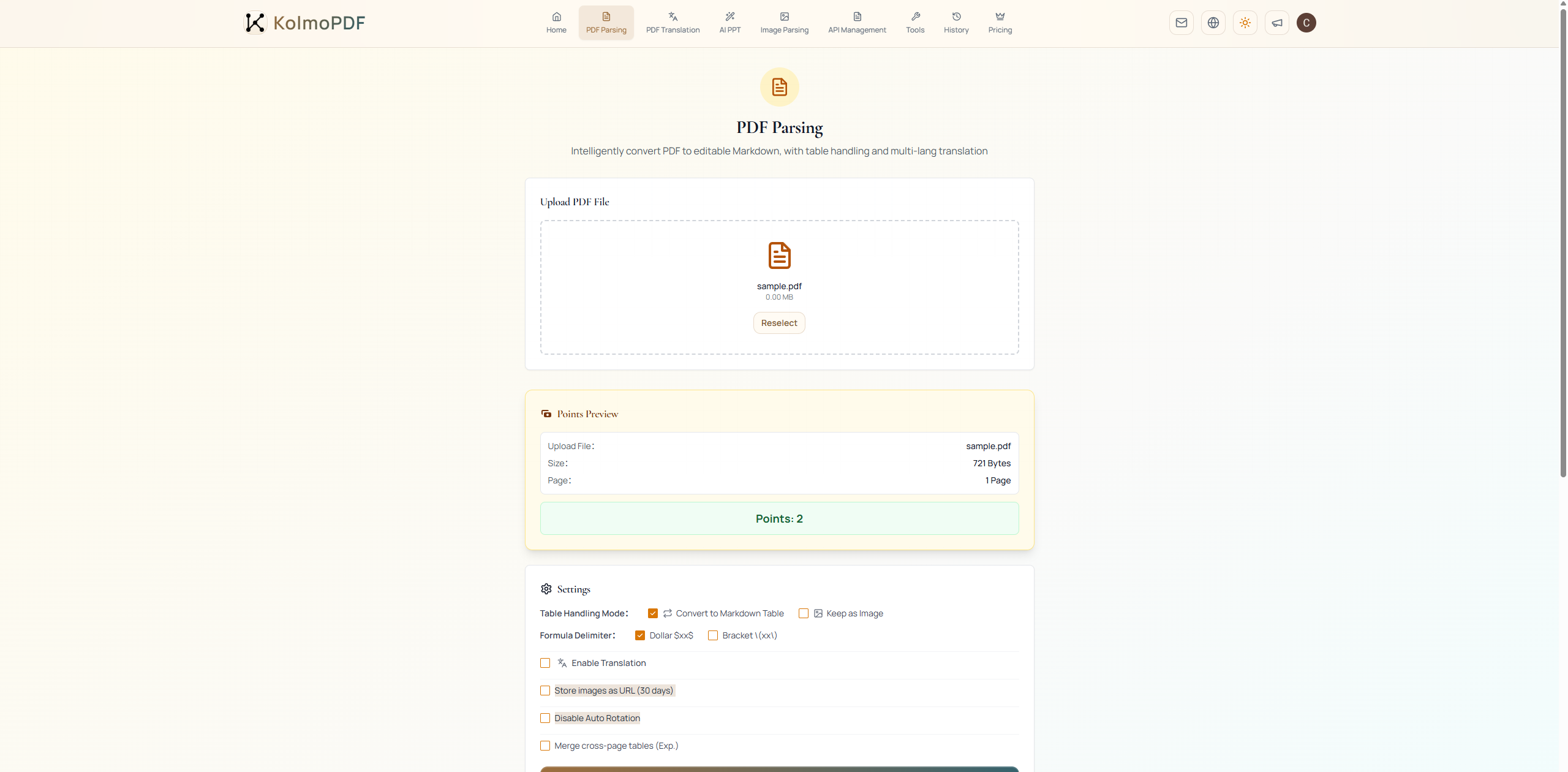
After uploading a PDF, review the Points Preview, configure the options under Settings, and click Start Parsing.
Table Handling Mode provides two options: Convert to Markdown Table and Keep as Image. Use Convert to Markdown Table when the table should remain editable in Markdown or be imported into a knowledge base. Use Keep as Image for complex tables whose visual layout is more important than text editability. If a large table spans multiple pages, enable Merge cross-page tables (Exp.) so KolmoPDF can try to merge it back into one table. This experimental option supports up to three consecutive pages and may add processing time.
Formula Delimiter controls how formulas are written in Markdown. Choose Dollar or Bracket \(xx\) according to the syntax expected by your downstream Markdown renderer.
Store images as URL (30 days) changes how extracted images are referenced in the result. When this option is off, images are packaged in the result ZIP and the Markdown file references local image files, usually under an images folder. When this option is on, the Markdown file references server URLs instead. Those URLs expire after 30 days.
Disable Auto Rotation is usually left off. Enable it only when the original PDF page orientation should be preserved exactly as-is.
Enable Translation expands additional settings for Target Language and Translation Output (Select at least one).
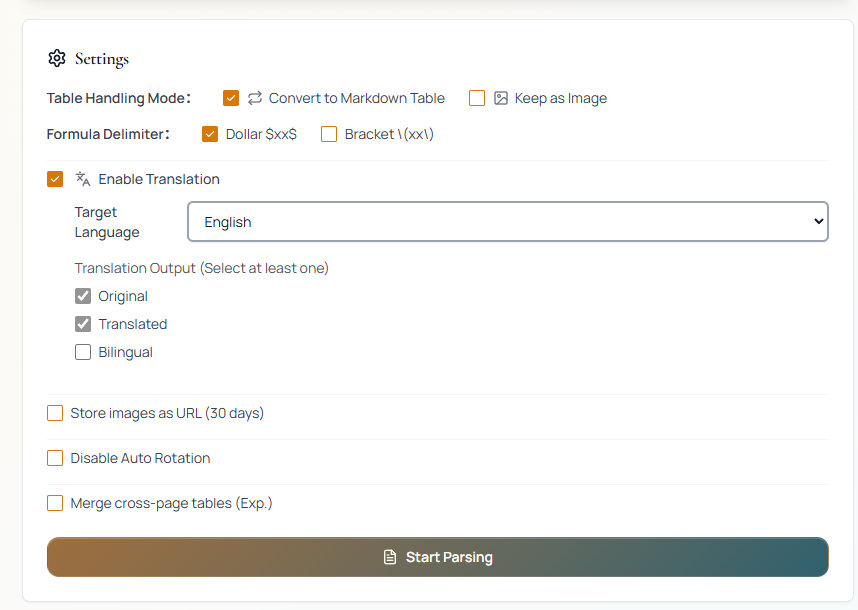
Under Translation Output (Select at least one), the available outputs are Original, Translated, and Bilingual. Original and Translated are selected by default. Select the outputs you want included in the result package. Bilingual alternates original and translated paragraphs so each original paragraph is followed by its translation.
Credits: PDF Parsing costs 2 pts/pg. PDF Parsing + MD Translation costs 3 pts/pg. File limit: PDF only, max 300MB, max 800 pages.
2. PDF Translation
PDF Translation translates PDFs while preserving the original layout, document format, and structure. The result is exported as a PDF file.
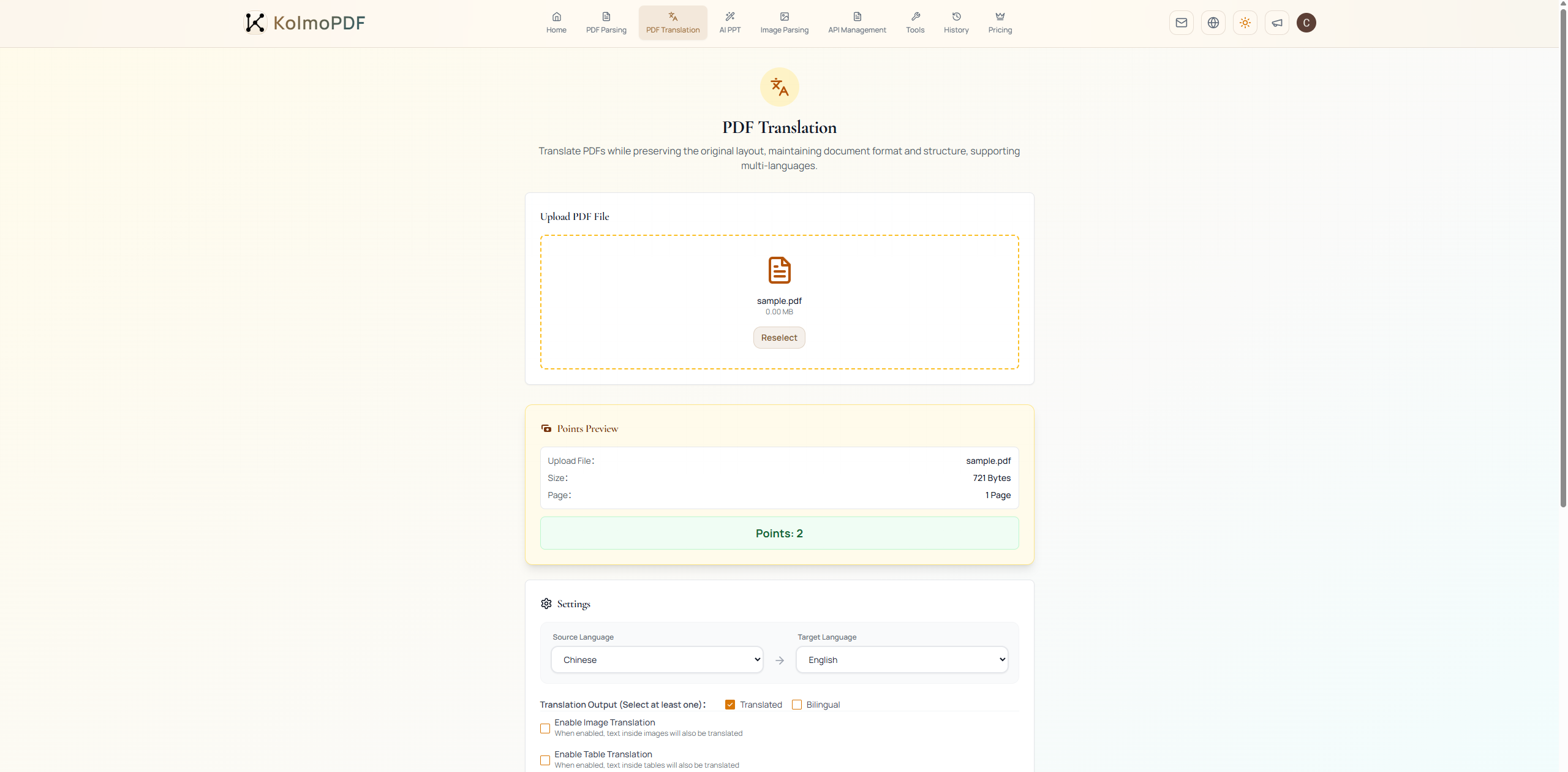
After uploading a PDF, choose Source Language and Target Language. Under Translation Output (Select at least one), select Translated, Bilingual, or both. The bilingual output places the original text and translated text side by side, which is useful for comparison reading.
Enable Enable Image Translation when text inside embedded images, screenshots, charts, or diagrams also needs translation. Enable Enable Table Translation when table text should be translated as well.
Add Glossary (Optional): If you want specific domain terminology translated consistently, enable Add glossary and upload a glossary file. Only CSV format is supported, up to 2MB. Use language codes as headers: en, zh, ja, ko, fr, de, es, ru, pt (you may include only the columns you need), with corresponding terms in each row below. Click Download template to get the sample CSV format.
After confirming the settings, click Start Translation.
Credits: PDF Translation costs 2 pts/pg. File limit: PDF only, max 300MB, max 800 pages.
3. AI PPT
AI PPT generates professional LaTeX presentation slides from uploaded PDFs or pasted source material. The workflow has four steps shown at the top of the page: Material Import, Outline Co-creation, Configuration, and Render.
Step 1: Material Import
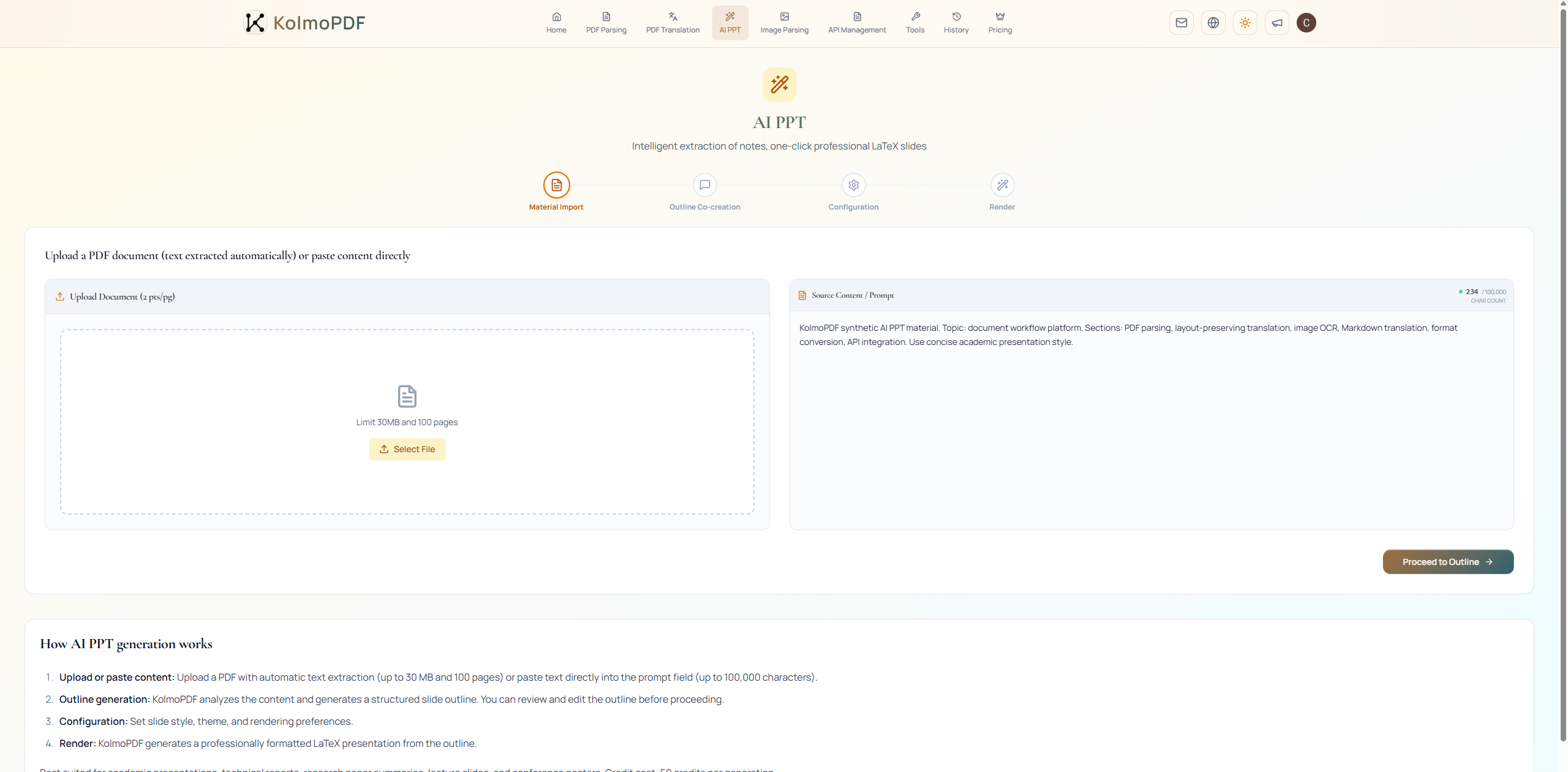
AI PPT supports two material sources.
Upload Document (2 pts/pg): Use the left upload area to upload a PDF document. KolmoPDF extracts the text automatically and moves into outline generation. The upload limit is 30MB and 100 pages. The extraction cost is charged separately at 2 pts/pg.
Source Content / Prompt: Paste an outline, source material, or prompt directly into the text area on the right. The limit is 100,000 characters, and the character count is shown in real time. Click Proceed to Outline to continue. The button is unavailable while the text area is empty.
Step 2: Outline Co-creation
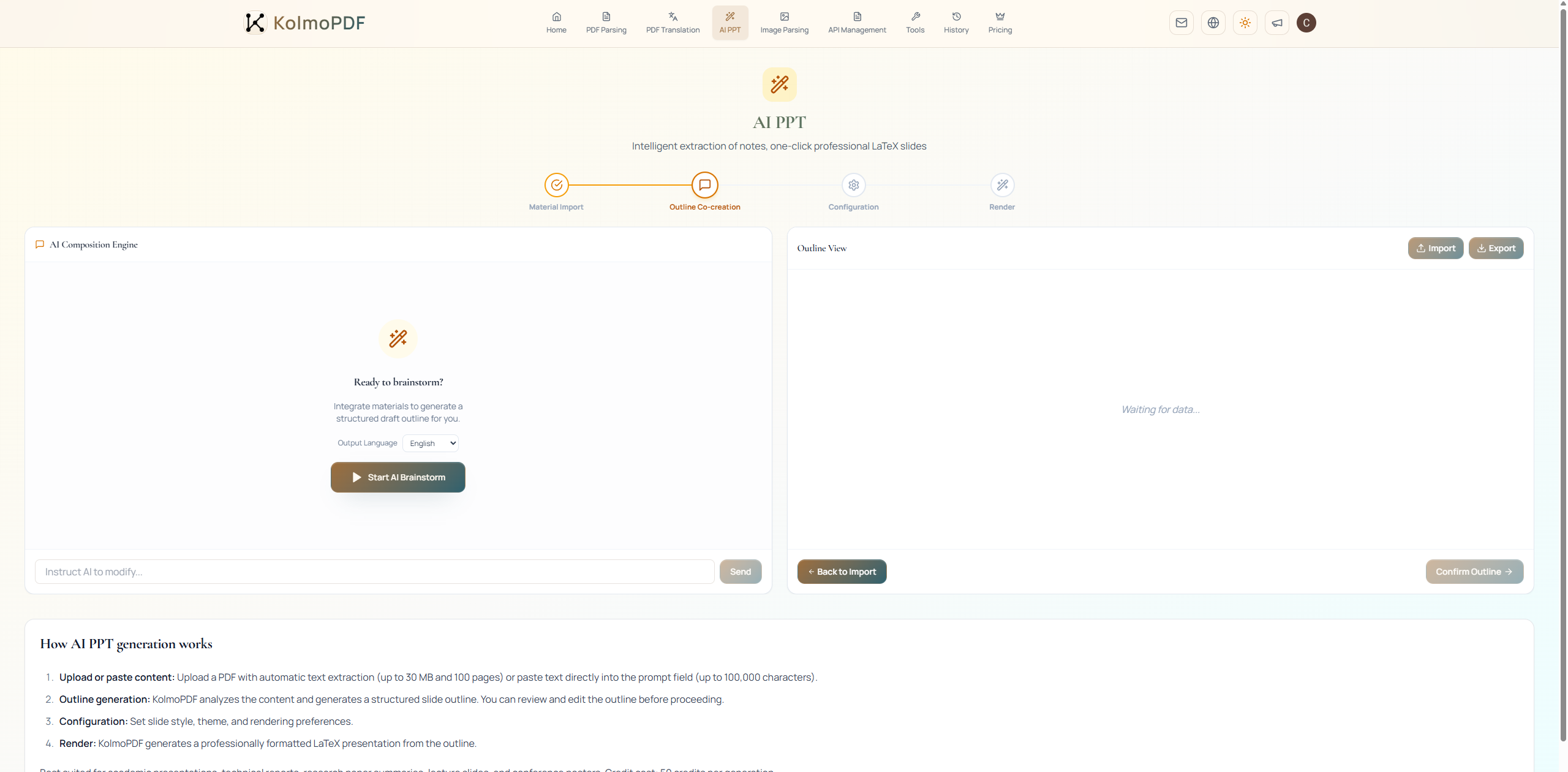
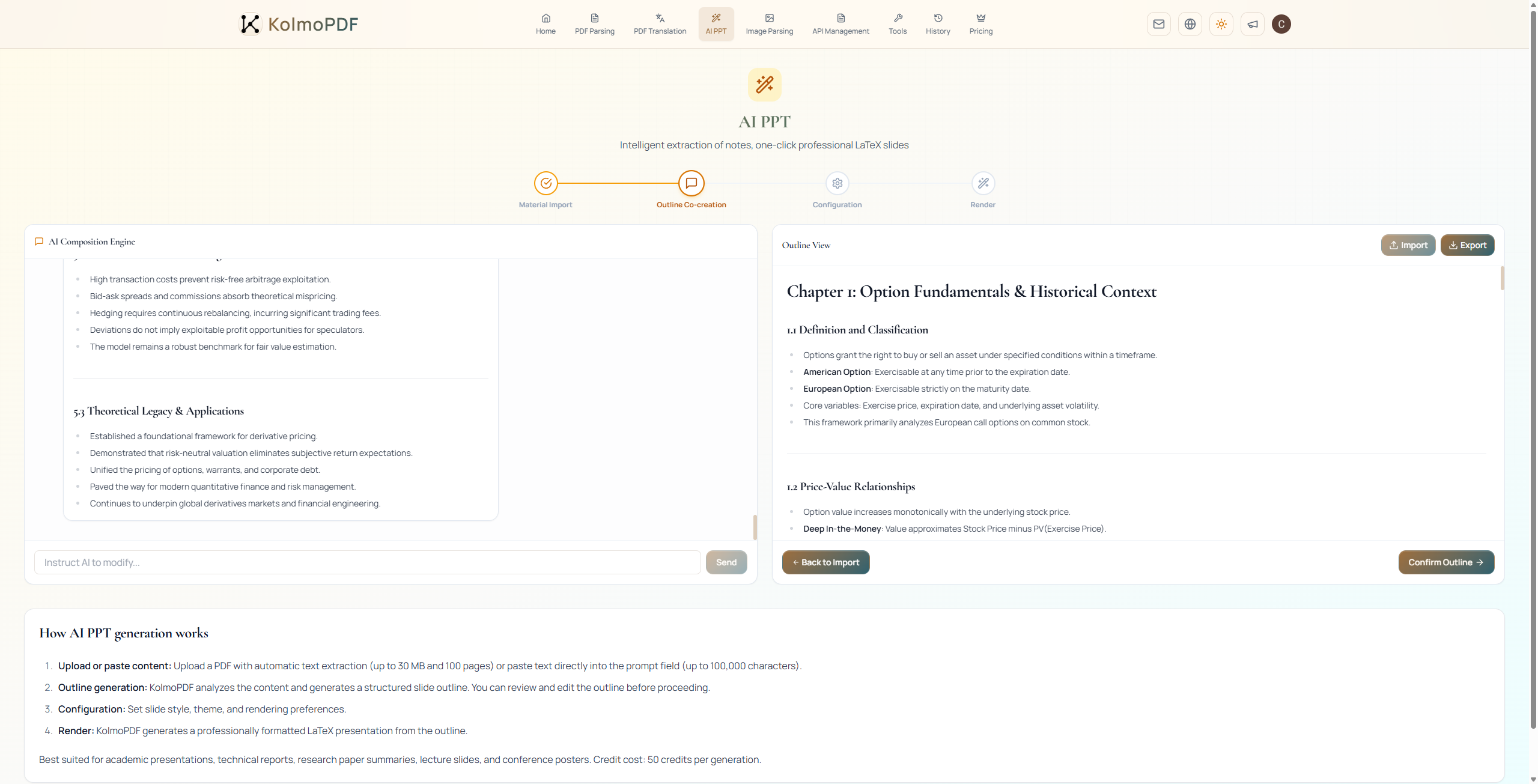
In this step, KolmoPDF analyzes the material and generates a structured slide outline. Review the outline carefully because the later slide generation is based on this structure.
You can adjust the outline in three ways:
- Enter an instruction in the AI editing prompt and send it to regenerate or revise the outline.
- Edit the outline text directly in the outline view.
- Use Export to save the outline locally, edit it manually, and then use Import to upload the revised outline.
After confirming the outline, continue to the next step. If you need to replace the source material, go back to Material Import.
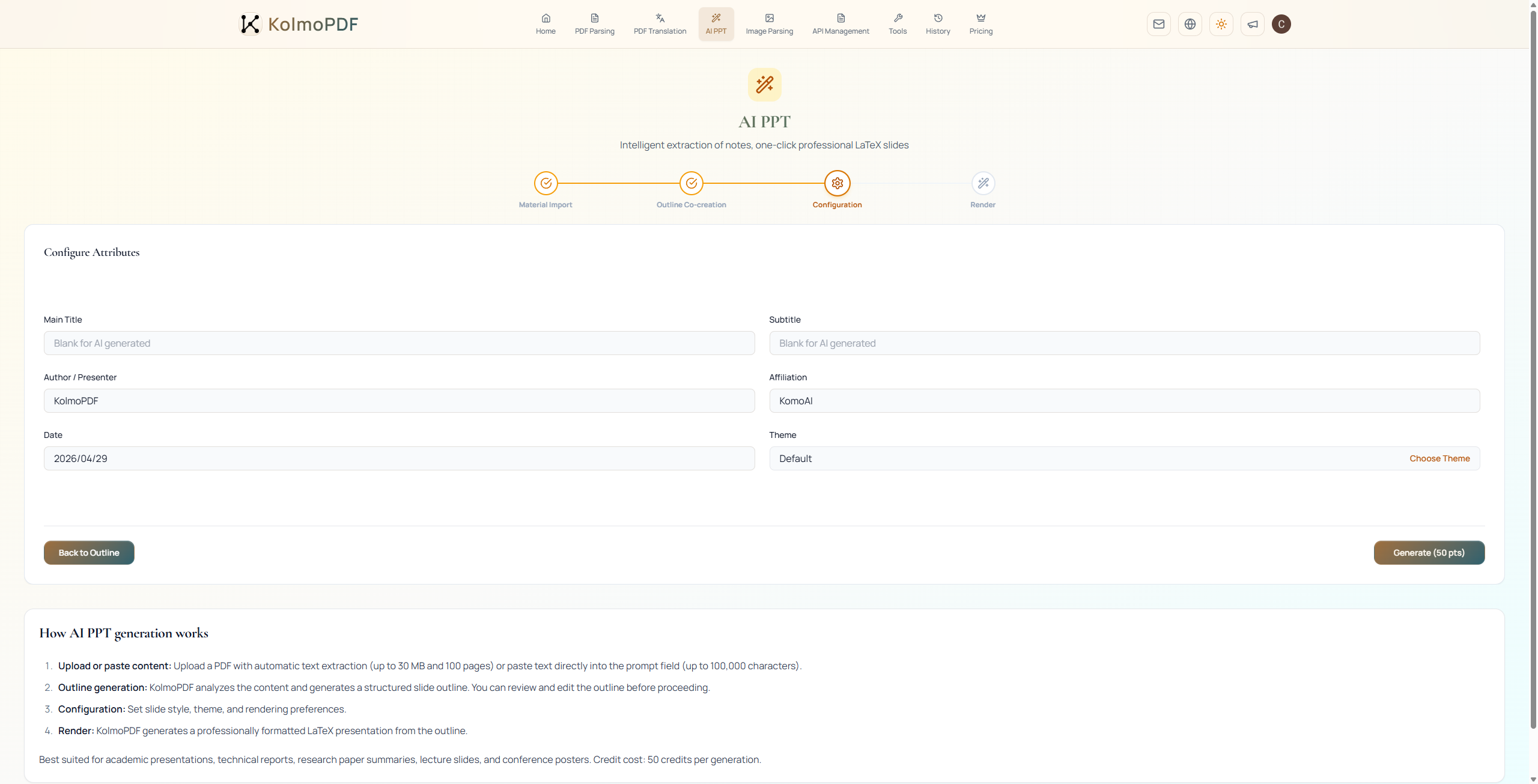
Step 3: Configuration
Fill in the cover information, including title, subtitle, author or presenter, organization, and presentation date. If the title fields are left blank, KolmoPDF can generate them automatically. If presenter, organization, or date are left blank, they are not shown on the cover.
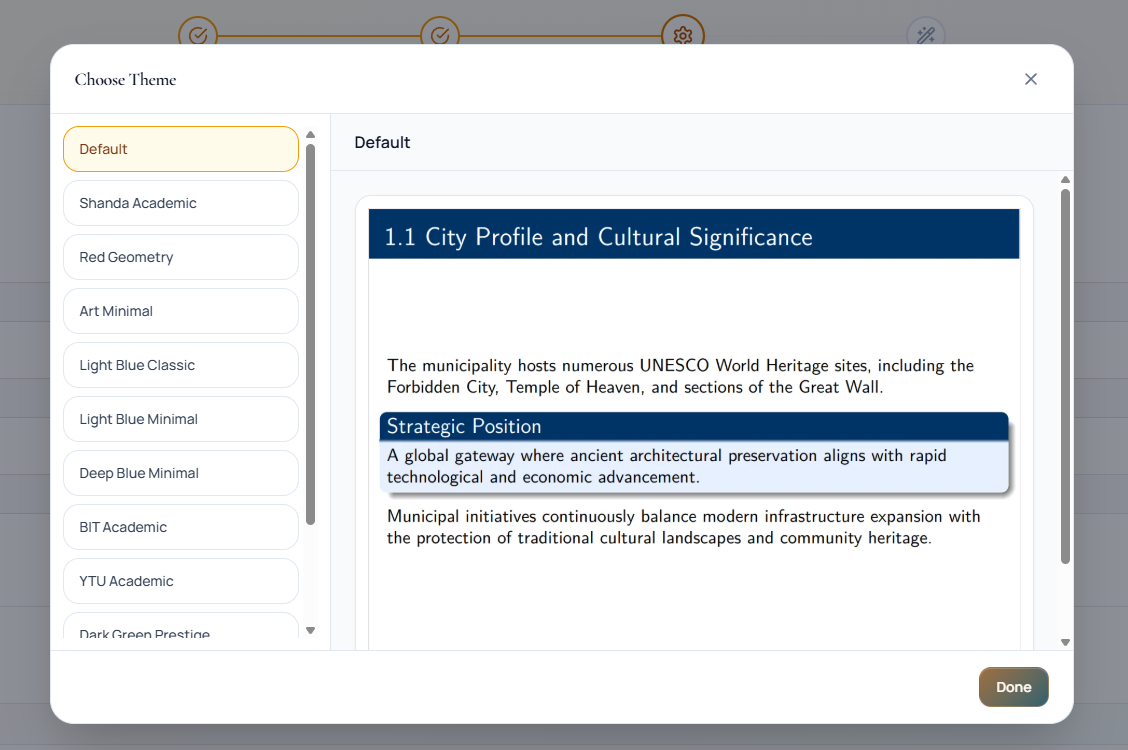
Use the theme selector to choose the slide style before rendering.
After completing the configuration, click Start Generation (50 credits) to begin rendering. To revise the outline first, return to the outline editing step.
Step 4: Render
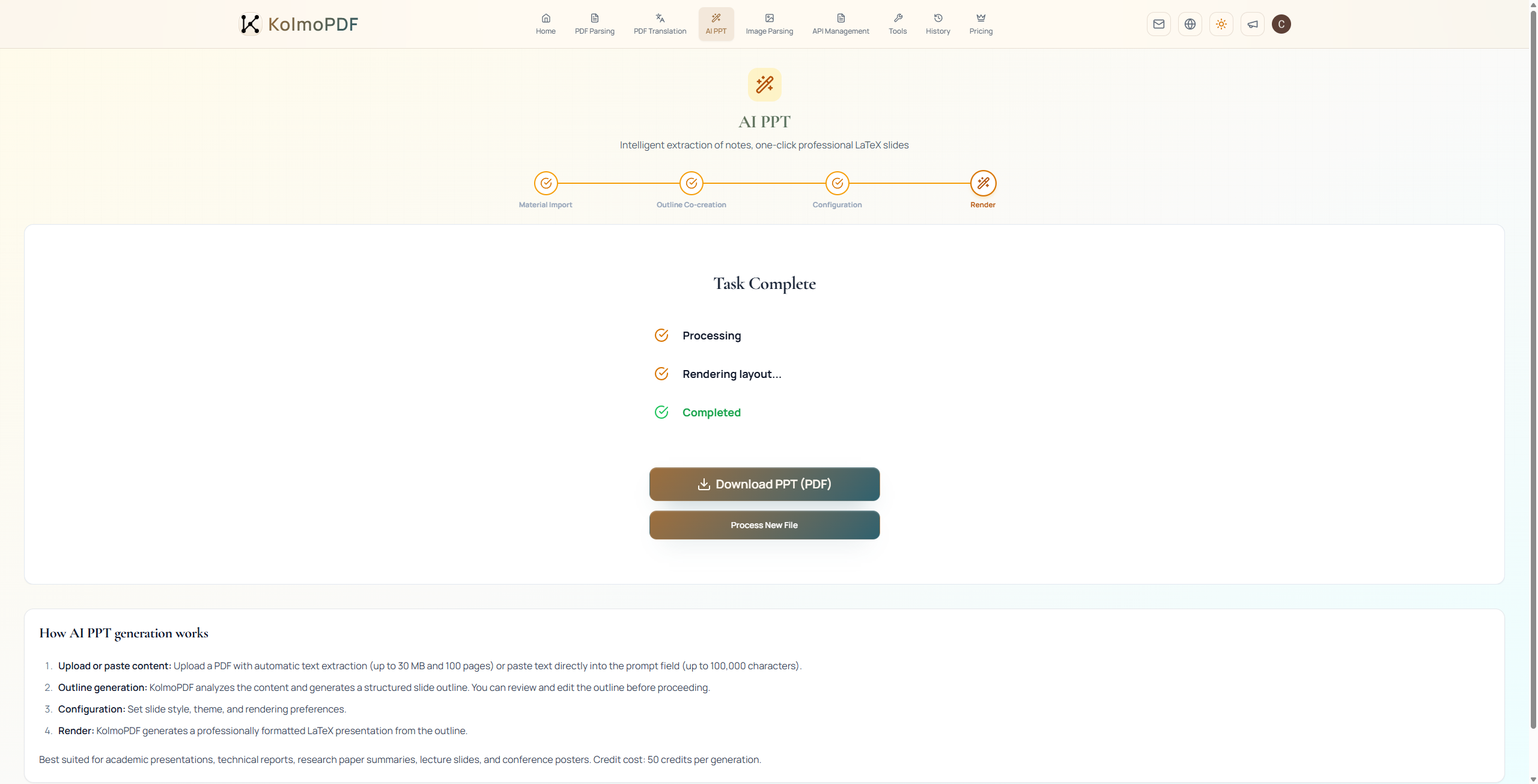
During rendering, the page shows progress through processing and typesetting states. The process usually takes several minutes, and LaTeX rendering can take longer. Keep the page open until the task completes.
When rendering is complete, click Download PPT (PDF format) to download the generated PDF. Use Process New File to clear the current task and start again. If generation fails, the page provides a return button to go back to configuration. Charged credits are not automatically refunded; contact support before retrying.
Credits: AI PPT costs 50 credits per generation. If Step 1 uses PDF upload, PDF extraction is charged separately at 2 pts/pg.
4. Image Parsing
Image Parsing parses uploaded images into Markdown text with AI-powered OCR and visual understanding. It supports file upload, drag-and-drop upload, and direct paste after taking a screenshot with Ctrl+V.
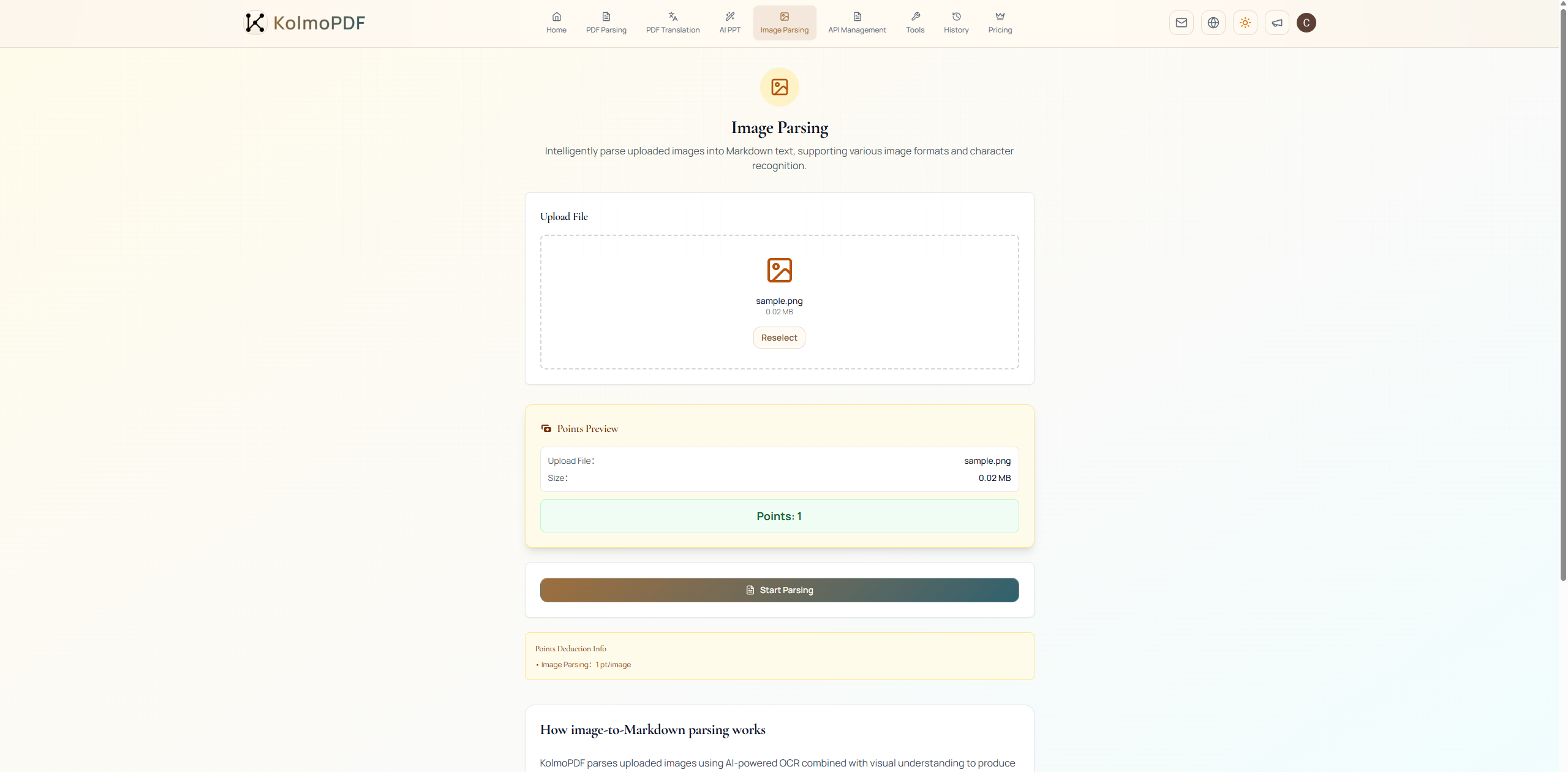
Upload an image and click Start Parsing. After processing completes, download the result from History.
Image quality directly affects OCR accuracy. If the source image is blurry, tilted, or heavily compressed, clean it up before uploading.
Credits: Image Parsing costs 1 pt/image. Supported formats: JPG and PNG. File limit: max 100MB.
5. Markdown Translation
Markdown Translation translates .md files while preserving the original Markdown structure. This tool accepts Markdown files only. If your source is a PDF, use PDF Parsing first to convert it into Markdown, then translate the Markdown file here.
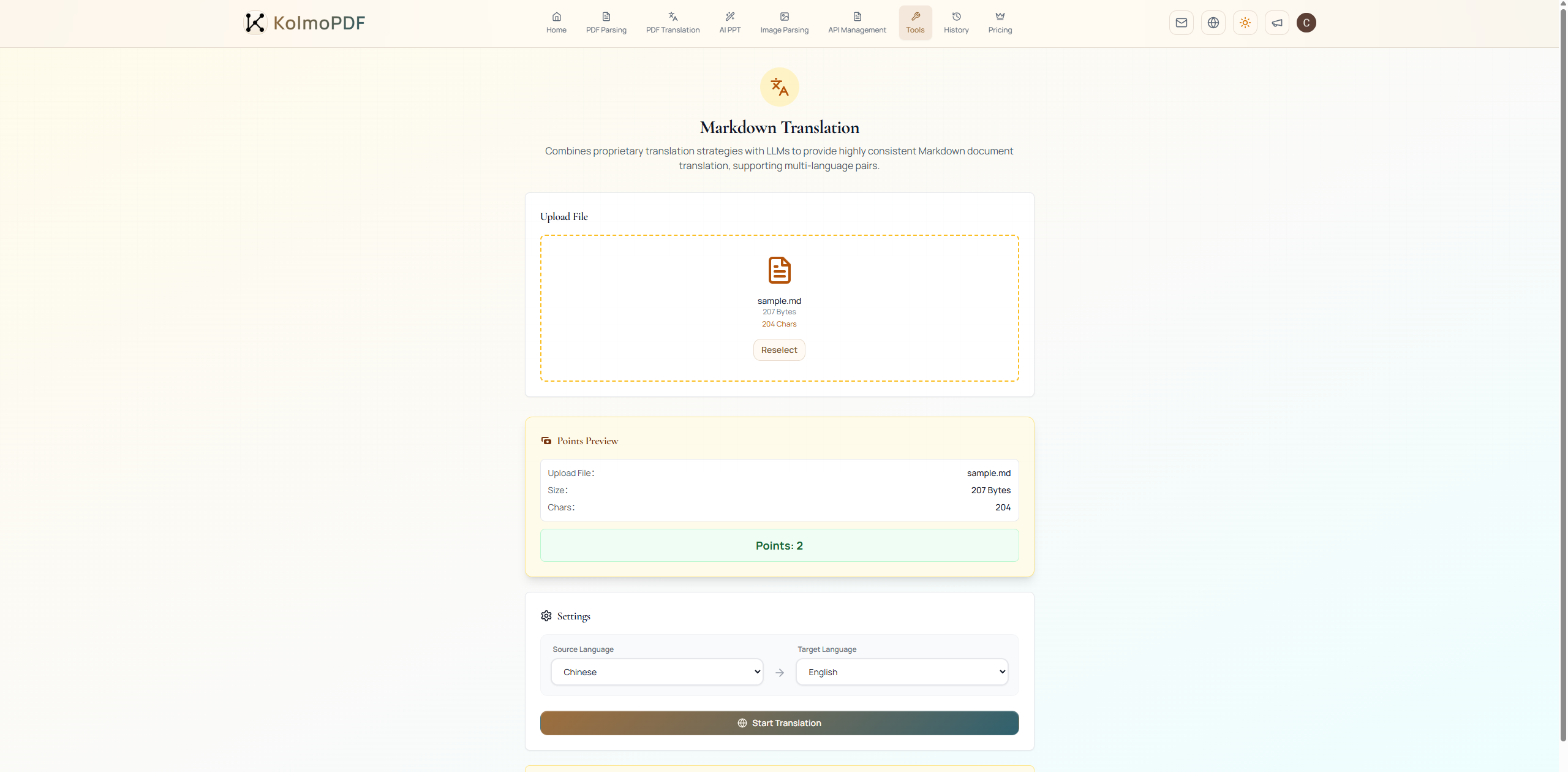
After uploading a .md file, confirm that the file card shows the correct file and review the Points Preview. The displayed preview is the billing reference. Select Source Language and Target Language, then click Start Translation. If you uploaded the wrong file, click Reselect and upload again.
Credits: MD Translation costs 2 pts/10k chars. File limit: Markdown only, max 100MB.
6. Format Conv
Format Conv converts Markdown into Word, HTML, PDF, or LaTeX output.
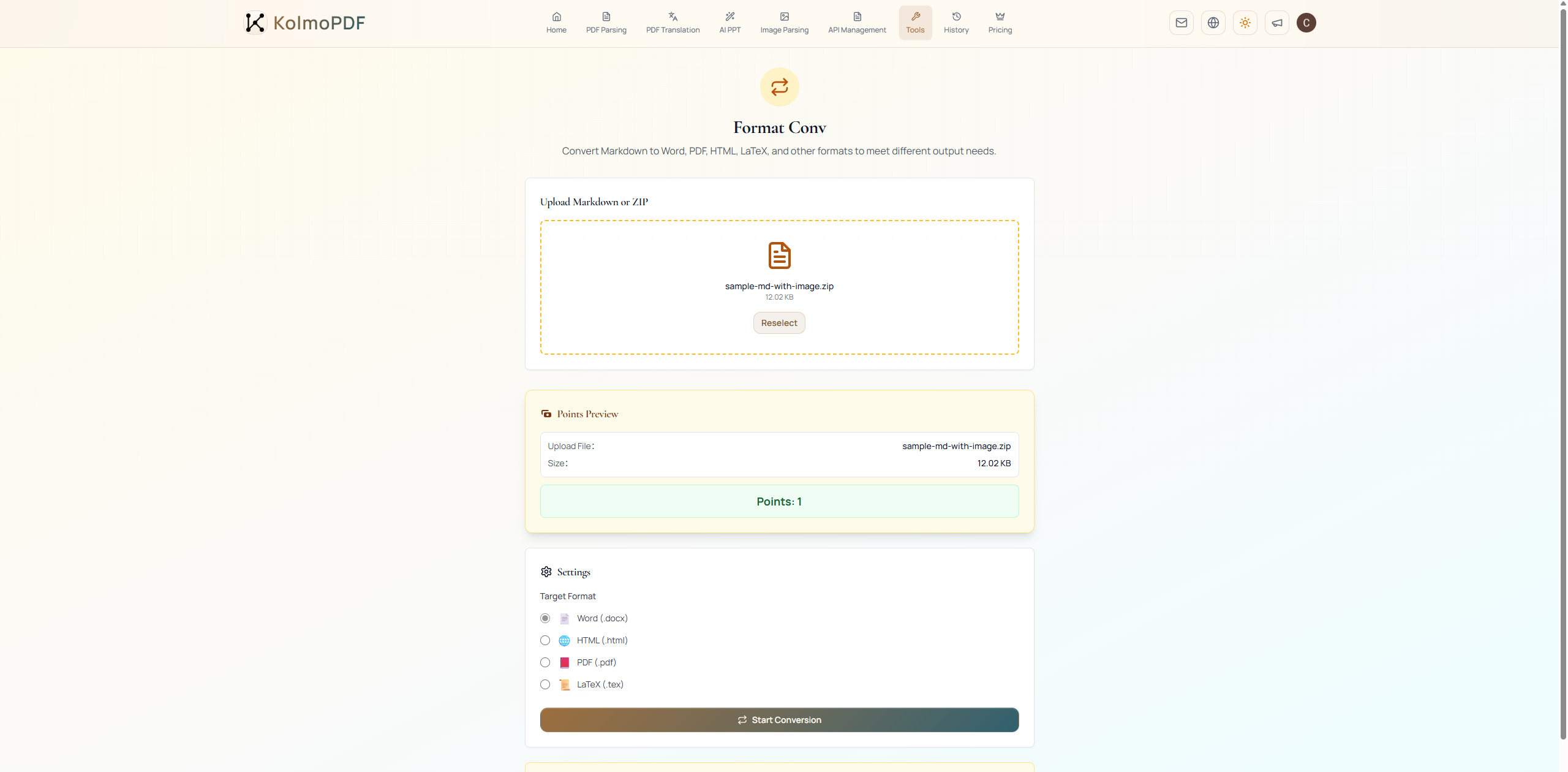
Upload a single .md file, or upload a .zip that contains the Markdown file and referenced images. Review the points preview, choose one option under Target Format, and click Start Conversion.
Available target formats are Word (.docx), HTML (.html), PDF (.pdf), and LaTeX (.tex).
Credits: Format Conv costs 1 pt/time and is free for members during subscription. File limit: max 300MB.
7. PDF Merge and PDF Split
PDF Merge
PDF Merge merges multiple PDF files into one file and supports drag-and-drop sorting.
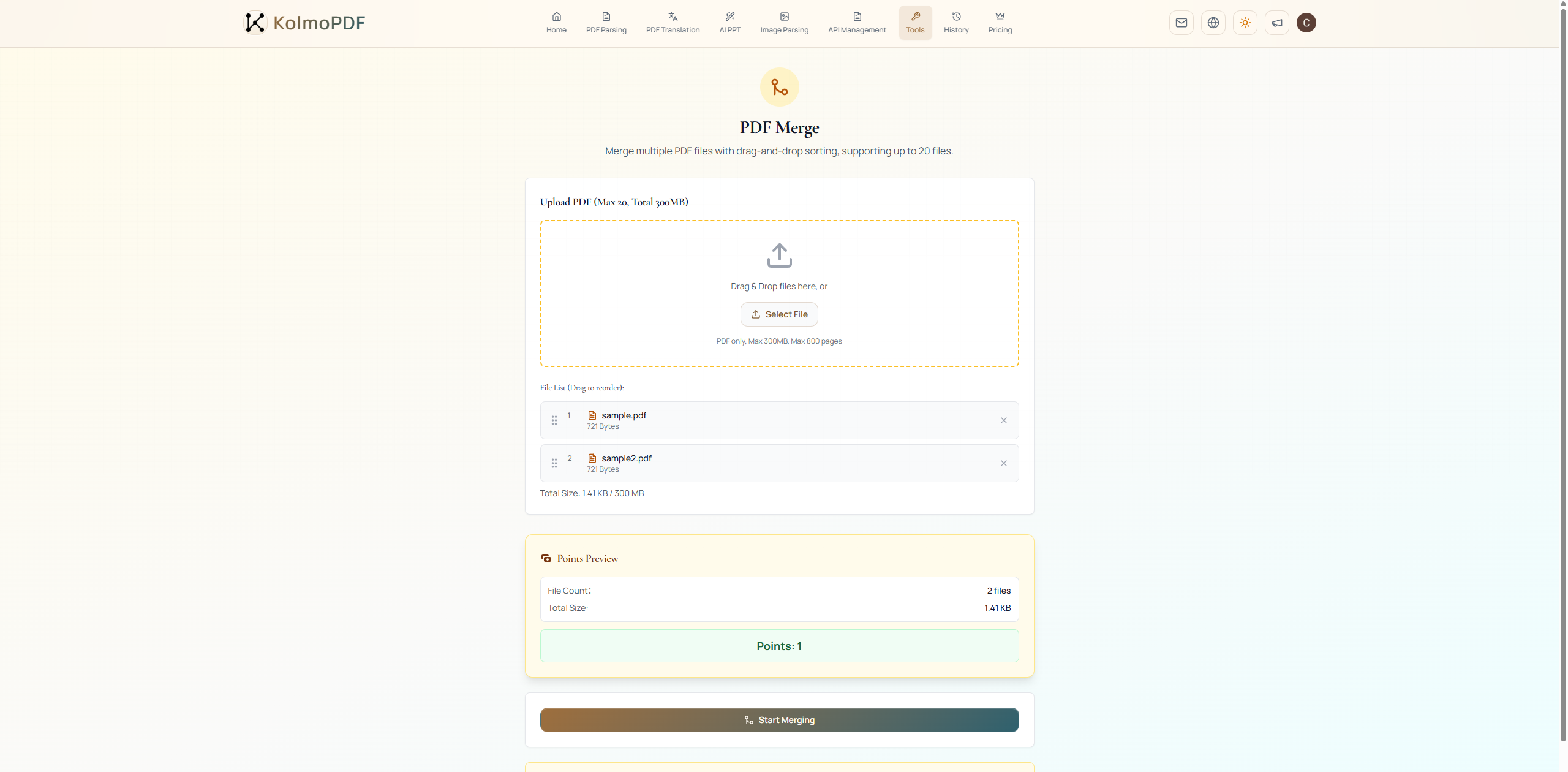
Upload all PDF files that should be merged. In the file list, drag files into the final order you want. This order determines the page order in the merged output. Remove extra files from the list if needed. After confirming the order and points preview, click Start Merging.
Credits: PDF Merge costs 1 pt/time and is free for members during subscription. Limits: max 20 files, total 300MB, max 800 pages.
PDF Split
PDF Split splits one PDF into multiple files by page range.
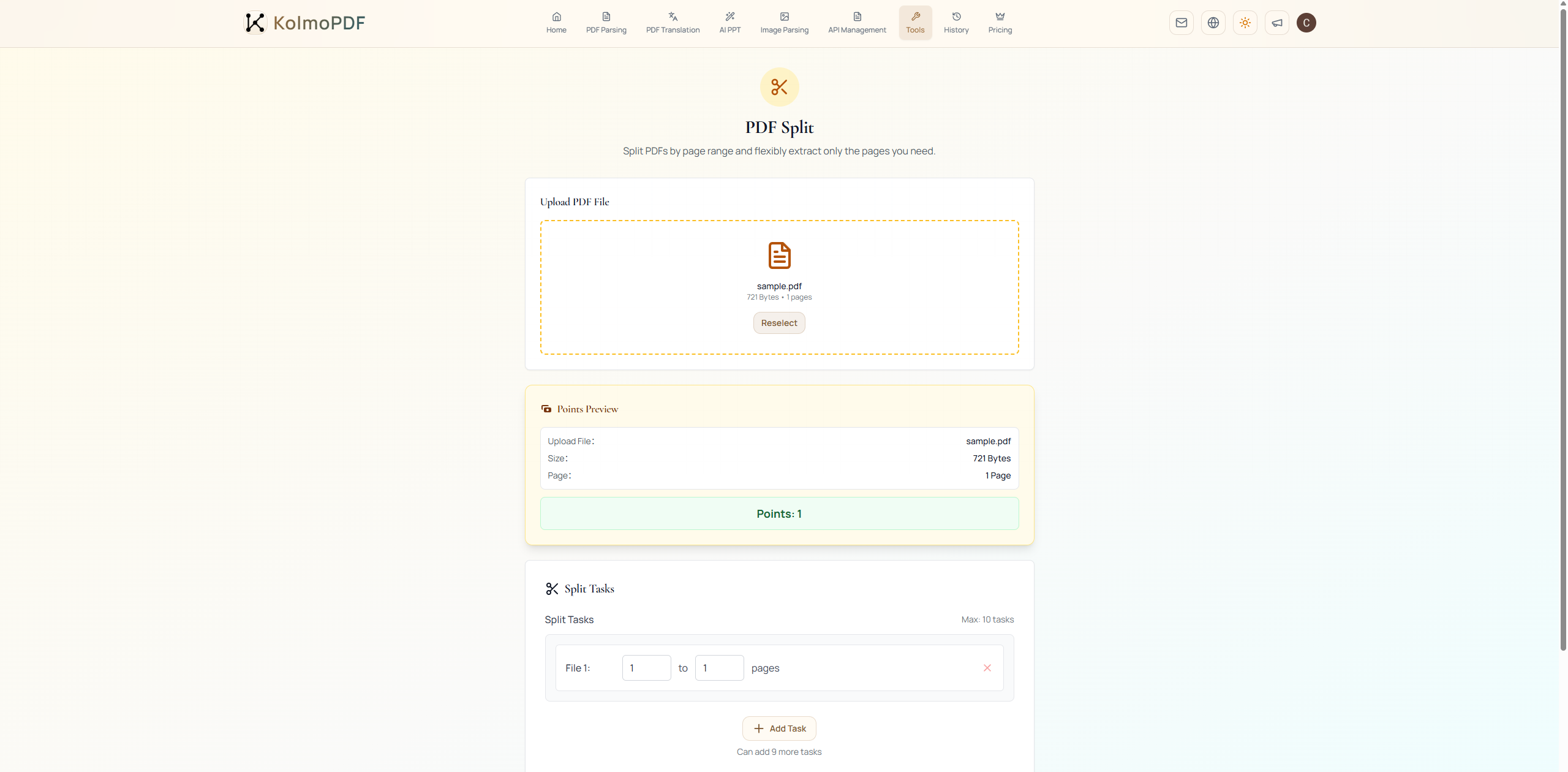
After uploading a PDF, KolmoPDF reads the total page count and creates the first split task. Set the start page and end page for the range you want to extract. To split multiple ranges, click + Add New Task and fill in each range. Up to 10 tasks are supported. After confirming the ranges, click Start Splitting.
Credits: PDF Split costs 1 pt/time and is free for members during subscription. Limits: max 300MB, max 800 pages, max 10 tasks.
8. API Management
API Management is available to all signed-in users. It lets developers integrate KolmoPDF processing capabilities into their own applications. Web credits and API credits are shared from the same account balance.
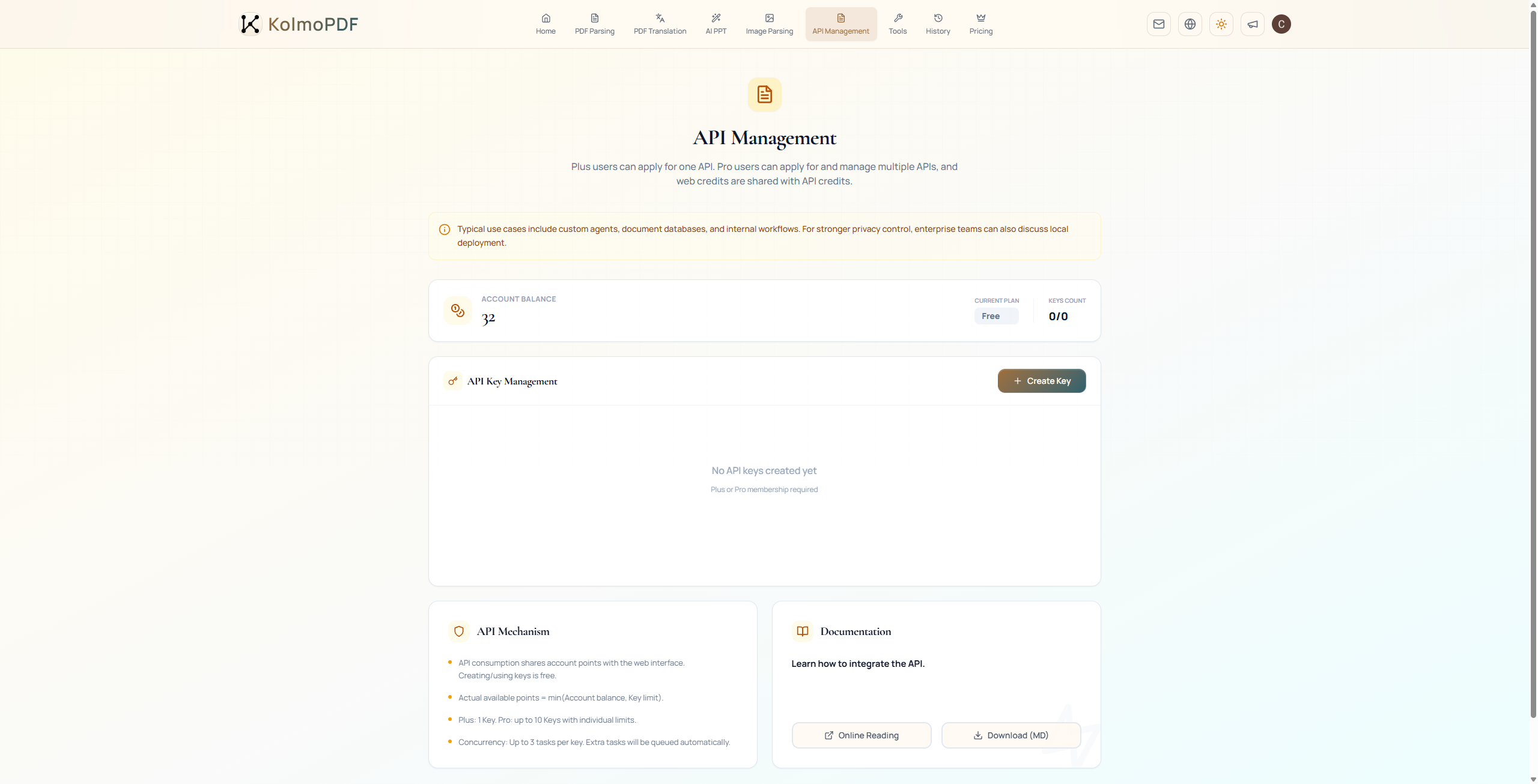
On the API Management page, click Create Key to create an API key. After the key is created, view and copy it from the key list. Use Online Reading to open the API Guide in the browser, or Download (MD) for the Markdown file. One guide covers PDF parsing, layout translation, and format conversion.
API calls use durable jobs: create returns a job_... id immediately (202 Accepted); track progress with webhooks, SSE, or status GET; then download the result. You can disconnect after create and reopen the job later by id.
Each API key can process up to 3 concurrent tasks. Additional tasks are queued automatically. Free users can create 1 limited-time API key. Go and Plus users can each create 1 permanent API key. Pro users can create and manage up to 10 API keys.
9. Credits Quick Reference
| Feature | Credit Rule |
|---|---|
| PDF Parsing | 2 pts/pg |
| PDF Parsing + MD Translation | 3 pts/pg |
| PDF Translation | 2 pts/pg |
| AI PPT | 50 credits/time |
| AI PPT with PDF upload extraction | 50 credits/time + 2 pts/pg |
| Image Parsing | 1 pt/image |
| Markdown Translation | 2 pts/10k chars |
| Format Conv | 1 pt/time, free for members during subscription |
| PDF Merge | 1 pt/time, free for members during subscription |
| PDF Split | 1 pt/time, free for members during subscription |